Here are some interesting Operating system and softwares tips and tricks 4u.JUST CLICK ON THE PICTURE IN THE BLOG FOR ENALARGED VIEW.

sd
Showing posts with label Web browser. Show all posts

Thursday, March 8, 2012

Control address bar access in Firefox with the old shortcut [F6](Firefox)

               So far, you could jump directly to the entry in the address bar by pressing the [F6] key. However, from version 4 onwards, pressing F6 takes you to the current active tab.
               With [F6], the focus always shifts to the topmost element in the window. As it is the tab bar, the active tab is selected. However, pressing [Tab] once again is enough to set the cursor in the address bar. In the newer versions of Firefox pressing F6 will focus on the active tab instead of the address bar. You can change this by deactivating the “Tabs on top” option. For this, right click in a free area in the tab bar and deactivate the “Tabs on top” option. After this address bar will become the top most element followed by the tab bar. So when you press F6 you will be taken to top most element that is the address bar. Another easier option to reach the address bar directly is using the key combination [Ctrl] + [L
nice coupon
Read More...

Switch off fraud protection (Phishing filter) in browser(Firefox)

              You want to speed up Firefox. For this, you can switch off the automatic fraud protection of the browser.
              In order to gain more efficiency from the browser, you can close the phishing protection of Firefox. Because if you have a complete security suite like Norton or Kaspersky installed in your system, than that is already protecting you against phishing. So having Firefox’s phishing filter activated will not be of mush consequence. For turning off the phishing filter of Firefox, go to “Tools | Options”. Here click on the security option and here deactivate the options “Block reported attack sites” as well as “Block reported web forgeries”.
Read More...

Wednesday, March 7, 2012

Now use mouse gestures in Windows Explorer(Windows Vista, 7)

                You love the useful mouse gestures in your Web browser and now you want them for working in Windows Explorer also. You would like to know if that can be done.
                Operating Windows Explorer can be improved with mouse gestures. For this, you will need, for example, the free tool Gest (www.bambi4.co.uk/programs/gest/gest.php). For installation, start ‘Gest.exe’. After a short while, the tool will be available in the notification area. After the automatic program start, confirm the question with ‘Yes’. You will then go to the configuration dialogue. Even if no changes are required, take some time to get to know the predefined gestures in the secton ‘Gestures’ for controlling by mouse movements. The alphabets stand for the sequence of the movements, whereby ‘L’ is for left, ‘R’ for right and ‘U’ for up and ‘D’ for down. The ‘O’ means a circle. However, you should avoid this, since a circular mouse movement is mostly interpreted as a result of individual movements. All the entries can be changed. Several possible gestures for the same action are separated by commas. Besides ‘New Window’, click on ‘Select folder’ and decide in which folder the Explorer windows thus started will be opened, if the standard view of the Libraries is not wanted. Besides special folders like ‘My Computer’ or ‘Control Panel’, you can also define another folder through ‘Other Folder’. Finally, apply the changes with ‘Apply’ and ‘OK’. You can again open the configuration dialogue if needed with the key combination [Ctrl]+[Shift]+[F2] or with the mouse gesture ‘DUD’, i.e. a movement ‘down-up-down’. For running a mouse gesture, keep the right mouse button pressed and execute the desired movement. A blue mouse trace illustrates the sequence. In addition, the ‘Gesture
Box’ in the upper left corner shows the recognized movements. In case the result has not yet been defined as a
gesture, you can do it in the dialogue box presented. Besides, mouse gestures also function in windows similar to Explorer, including the Control Panel.
Read More...

Tuesday, March 6, 2012

Upgrade individual menus with important functions(Chrome)

              You hopelessly look for certain functions in the minimalistic menu of Chrome. You want easier access to some things and setup your own menu.
              Google itself offers the Chrome Toolbox that allows you to easily configure browser functions used most frequently. It can be downloaded and installed from 'chrome.google.com/webstore/detail/fjccknnhdnkbanjilpjddjhmkghmachn'.
              Once installed, you can access the Toolbox via an icon in the menu bar. Using Toolbox, you can save form data, mute tabs, open last closed tabs, etc. There is also a key combination for every command. However, you will have to personally adjust the menu selection with the “Options” command. The settings required for that are given in the “Shortcuts & Menu” tab. Here you can find Chrome’s keyboard shortcuts and add them to the quick access drop down menu of the Toolbox. You can also define keyboard shortcuts for Boss Key, Quick Launch, Fill Form and Mute all Tabs. You can activate other useful options like moving icon bars for photos and videos from the “General Tab”. With the “Compare shortcuts with other browsers” option, you can use the extensive lists to directly compare and study the key combinations of the viewed browsers.
Read More...

Easily access configuration settings from the menu(Thunderbird, Firefox)

              You regularly perform special configuration settings for Thunderbird. For this, you have to search at first how you can get back to the entries of “about:config”.
               Install the free extension ‘ViewAbout’ and quickly get the desired settings of the extended configurations. Go to “Extras | Add-ons” in Thunderbird and click “Install”. Then navigate to the new XPI file and “Open” these. You get the required permission by clicking “Install now”. Finally, you must “Restart Thunderbird”. In future, you will see a new entry “ViewAbout” in the menu “View”. You now have direct access to all the available “About” pages in its sub-menu. You will be surprised to know how many additional options are hidden there. However, not all of them function in Thunderbird.
Note: The extension ViewAbout can also be installed in Firefox. Although the call up “about:config” is simpler here, it functions still faster via this menu and moreover, you can see which other “about” pages are still available.
Read More...

Copy and paste links and addresses with several lines(Firefox, Thunderbird)

               You sometimes get long links via email that are mutilated due to the line breaks. You always need to put them together and want to know how this can be done faster and better hereafter.
               Contrary to what some people believe, the browser in the address bar accepts a URL with several lines with line breaks as an entry without any problem. Ditto for a few other browsers.
               The only difference lies in making entries in text fields such as in Google Mail. In case of fields with several lines like in the field for message texts, the copied texts are always entered with the contained line breaks. In text fields with a single line such as the subject, the behavior depends on a hidden setting. In order to adjust this setting, enter “about:config” in the address line and press Enter. Confirm the warning by clicking “I will be careful”. In the “Filter” field, enter “editor.singleLine. pasteNewlines”.
                For further editing, double click the entry in the list. The value “0” adopts everything without any changes whereas the value “1” accepts the content only up to the end of the first line. This was the same in Firefox 2 and is also applicable for Internet Explorer. From Firefox 3, the value is set to "2" by default and it leads to line breaks being replaced with blanks. It is also more practical to remove the line breaks completely or to replace them with command, which you can do with values “3” or “4”. Then confirm the change with “OK” and restart the browser.
                Thunderbird also has this configuration. It is effective for instance when you copy an address in the “To” field when composing a new message. In order to ensure that the addresses are correctly used, they must be separated using a comma. The value “4” is thus most practical for the configuration setting.
Read More...

Saturday, February 25, 2012

Test the memory load of the browser with a direct command.(Firefox)

             You often have a feeling that your system becomes slower when you open Firefox with few important tabs in the background. You want to get to the bottom of it.
             Type ‘about:memory’ in the address bar and press Enter in order to get information about how much memory Firefox has reserved and how much memory is the browser actually using at the moment. You can get cache information on the screen with the command about:cache. You will come to know where Firefox buffers its data (RAM, hard disk and network), how memory space is utilised on the whole and how much memory is still unused. If you want to know this in detail, you need to also know which entries are saved. They are listed as links on request (click the link).
Read More...

Link websites to branch listings in the task bar specifically.(Browser)

             Branch listings of browsers show frequently used elements as well as the last used elements. You can use a trick to specifically anchor certain websites in order to request them quickly.
             The elements shown by Windows in the lists depend on the browser used. What is common for all the surf programs is that the elements can be permanently linked. For this, open the branch listing by right clicking the relevant icon in the task bar. Then right click the desired element and select the context command ‘Attach to this list’.
             You can also click the displayed pin icon to the right of the entry.
             This can also be easily done via Drag and Drop. If you want to link an open website, then click in the address bar of the browser and drag the preceding favicon and drag it into the task bar with the left mouse button on the browser icon pressed. Here, allocation to another browser is also possible. If you drag a favicon from Firefox with the mouse button pressed on the Internet Explorer icon, then the relevant website is immediately linked. Only links from Opera cannot be dragged in this manner. A link that is directly dragged to a free spot in the task bar is automatically linked to the default browser.
Read More...

Cancel hanging tabs or tools individually.(Google Chrome)

             Individual scripts or websites are sometimes defective and hang, or an add-on in the browser starts giving problems. Restarting the browser is what you usually need to do.
             Chrome is the first browser to introduce a consistent separation of individual tabs at the process level. You can check that when you start the task manager with many tabs open in the browser. Press the key combination [Ctrl]+[Shift]+[Esc] and switch to the ‘Processes’ tab. For instance, if there are four tabs open, you will see the ‘chrome.exe’ process displayed at least five times. You can end the processes here itself but you cant see which process entry belongs to which tab.
              It is this information that the internal task manager of Chrome provides. You can call it up from the Chrome program window either by pressing the key combination [Shift]+[Esc] or by right clicking a free spot above the address bar and selecting the context command ‘Task Manager’. The following dialog shows the tab or plug-in to which the process is correlated. Select the desired entry and click ‘End process’.
              You can call up detailed information about memory usage of individual processes via the link ‘Statistics for nerds’ and thus identify which websites are low on memory. Moreover, the overview also shows the memory requirements of all other currently open browsers. You can thus end a hanging Flash Player without problems or close a tab with defective websites without affecting the remaining browsers. The closed page displays a message in the tab, thus enabling immediate reloading of the page.
Read More...

Activate menu bars and tool bars as you want(Internet Explorer 9)

             The functioning of the new Internet Explorer 9 seems to be decent even without menu and tool bars. But you still wish to have some of those bars and want to activate them.
            With its minimalist interface, Internet Explorer is following in the foot steps of Google Chrome. This display takes a little getting-used-to but proves to be absolutely advantageous once that is done since it leaves so much more space for the website without changing the functioning too much. But anyone who does not want to do without the usual bars will keep bringing that up again and again. This however cannot be done via the options in the setting dialog. Right click a free spot of the title bar. Then activate the ‘Menu bar’ or the ‘Status bar’ in the context menu. You can also enable a ‘Command bar’ in Windows Vista as well as the ‘Favourite bar’ from here.
             What is a little confusing is that the tabs are arranged near the address field. Although this saves space, it can at times lead to confusion between the tab and the address field and cannot display a lot of tabs simultaneously. If you want to see the tabs and the address fields separately, right click on a free space of the title bar and select the context command ‘Show tabs in a separate row’.
NOTE: If you opt for this compact user interface, you can always access the menu bar with [Alt].
Read More...

Friday, February 24, 2012

You can easily import bookmarks from Opera to Firefox.(Import bookmarks in Firefox)

By Friday, February 24, 2012 No comments
              You have been using Opera browser, but switched to Firefox as Opera doesn’t support sites that are created for a particular browser, especially many of the banking sites. You had saved many bookmarks in Opera and want to import the same in Firefox.
              Importing your bookmarks form Opera to Firefox should be fairly simple. Firstly, create a HTML fi le of your bookmarks in Opera. This can be achieved by exporting the bookmarks from your Opera browser and saving it as an HTML fi le. Open Opera browser, go to File, under that you will fi nd the option Import and Export. Click on it and then select the option Export bookmarks as HTML. Select a location and save it. Now open Firefox, select ‘Bookmarks’ tab. Here you will see the option ‘Organize Bookmarks’ under that select the option Import and then select the HTML fi le from the location where you have saved it.
Read More...

Use the keyboard purposefully and beneficially with Caretbrowsing(Mozilla Firefox)

By Friday, February 24, 2012 No comments
             It’s a little difficult to mark and copy text from a website when using a touchpad of your laptop or notebook, especially while traveling.
             With the Caret-browsing feature, Firefox offers an alternative to navigate by using the keyboard instead of a mouse or touchpad. To switch on this function, open the command ‘Tools | Options’ and select the category ‘General’. Activate the option ‘Always use the cursor keys to navigate within pages’. Confirm with OK. The Caret-browsing feature can also be quickly activated by pressing the [F7] key. You will see a vertical cursor that marks the current position within the website in this mode. You can navigate easily to different areas and links by pressing tab key repeatedly. You can navigate on the page and mark texts with the help of [Shift] key. You can open the links by pressing the entry key. If you no longer wish to use the Caret-browsing feature than it can be deactivated by simply pressing the [F7] key again or by deactivating the option from Tools menu. However, Caretbrowsing can possibly causes problems with the scrolling key and moreover the links may not be open properly.
Read More...

View two pages simultaneously in the browser(Google Chrome, Firefox)

By Friday, February 24, 2012 No comments
             Sometimes you require two pages simultaneously to compare things or to write contents of one page to another. The continuous change requires annoying clicks.
             A simultaneous display of several websites is possible through arranged windows, but finally you will have to revert to the normal window size. The complementary plug-in Chrome Dual view offers a smart alternative. You can fi nd the download under chromeplugins.org/plugins/google-chrome-dual-view/. It does not function as a plug-in in usual sense, but the function is realised with the help of Java script directly in the browser window. It works once you save the link as a bookmark and it will function similarly in other browsers like Firefox or in the Internet Explorer. To use, simply open the bookmark, feed the URL of the website you want to open on the left hand side in the first dialogue box and then in the next box feed the URL of the second website. The script will load both the websites near each other, in a way that the screen is vertically split.
Read More...

Thursday, February 23, 2012

Set direct access for your favourite pages(Google Chrome, Firefox)

By Thursday, February 23, 2012 No comments
               For ease of use, you create browser bookmarks for the pages that you access regularly on the Internet. These bookmarks can be further modifi ed to make the process simpler and more organized.
              The bookmark bar is a practical and helping tool for directly jumping to your favorite websites. However, even then, bookmarks cannot be adjusted in it in normal case. With a trick, you can practically accommodate all the websites important for you and these are just a click away for access. Switch on the bookmark bar. Click on the Settings icon and then select ‘Tools’ option. Here, activate the option ‘Always show bookmarks bar’. In Firefox, go to ‘View’ select the ‘Toolbar’ option and activate ‘Bookmark Toolbar’. For managing the bookmarks in a better and more organized manner, you can choose to display only the icon or logo of the website instead of the whole name. To achieve this in Firefox, right-click on the bookmark, then go to ‘Properties’, and delete the name of the website in the name fi eld. Save the changes. In Chrome, right-click on the bookmark, and select ‘Edit’. Here, you can delete the name in the name fi eld, and save to confi rm the changes. The bookmark icons can be rearranged by dragging them to the desired location.
Read More...

You can easily import bookmarks from Opera .(Import bookmarks in Firefox)

By Thursday, February 23, 2012 No comments
              You have been using the Opera browser, but switched to Mozilla Firefox for some reason. You had saved many bookmarks and you want to import them.
              Importing your bookmarks form Opera to Firefox should be fairly simple. Firstly, create an HTML fi le of your bookmarks in Opera. This can be achieved by exporting the bookmarks. Open Opera, go to File, under that you will fi nd the option Import and Export. Click on it and then select the option Export bookmarks as HTML. Select a location and save it. Now open Firefox, select the ‘Bookmarks’ tab. Here you will see the option ‘Organize Bookmarks’. Under that select the option Import and then select the HTML file from the location where you have saved it.
Read More...

Use automatically encoded connections(Mozilla Firefox)

By Thursday, February 23, 2012 No comments
              Whenever possible you use the versions of websites which are protected with HTTPS. But sometimes you do not know whether a protected version of a site is available.
              With hacker tools like Firesheep readily available, it becomes easy even for a layman to break into unsecure HTTP sessions on many websites. There is a high risk on many big web portals or pages of a social network through such an identity theft. Thus such sites must be used only with encoded HTTPS connections. You can use free browser updates like HTTPSEverywhere, to automate the safe encoding process as far as possible. Go to www.eff.org/https-everywhere and grant the required permission by clicking on ‘install now’. Restart Firefox. The tool is automatically activated and requires very little configuration. Firstly open the command ‘Tools | Add-ons’, and click on the respective ‘options’ button. You will see an overview of all the present unprotected websites. It contains important portals like Google Search, Microsoft, Mozilla, Twitter and Facebook. You can deactivate rerouting for a particular website, if there are problems with the protected connection. For instance, if you buy often at Amazon, you need to activate the option ‘Amazon (buggy)’, so that the access on the pages of the online store takes place in the encoded form. Finally confirm the dialogue with ‘OK’. Rerouting to the encoded websites takes place automatically; you need not enter the special HTTPS address.
Read More...

Read stored user name and passwords(Chrome 4, 5, 6, 7, 8)

By Thursday, February 23, 2012 No comments
            The browser stores usernames and passowrds on request, which are the credentials of your important websites. Unfortunately, you yourself have forgotten individual user names or passwords and would like to read the stored versions.
             The free tool Chrome Pass makes all the right credentials stored in the browser visible. You can fi nd the program at the website www.nirsoft.net/utils/chromepass.html.
             Since it is a tool for reconstructing passwords, you may use it only on your own computer. The ability to download this tool is being blocked by some security applications like Norton Internet Security in order to prevent unauthorized misuse. In such a case, you will need authorization to have the protection program temporarily enable the download.
             Chrome Pass requires no installation, but after unpacking the ZIP archive it is ready to go. The data of the current user profile of Google Chrome will be loaded automatically. Next to that URL, you will also fi nd the fi eld name of the form and the user names and passwords listed individually. With the key combination [Ctrl] + [A] select all messages. Next, simply use the command 'File | Save selected items'. Define a name and location for the new text file to be saved. Clicking on "Save" then backs up the entire list.
NOTE: This tool is generally not for use on a computer to which others have access. The use of Chrome Pass rightly illustrates how easy it is for unauthorized persons to read these passwords. Never leave the plain text file lying around on your PC for others to discover.
Read More...

Have your favorite sites ready immediately after the start(Chrome 4, 5, 6, 7, 8)

By Thursday, February 23, 2012 No comments
            It would be convenient if you could access the sites that you visit regularly immediately as you start the browser.
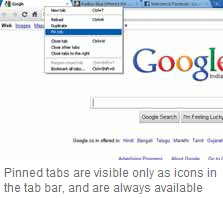
            Open the sites that you visit regularly. Now right click the tab and select the ‘Set Tab’ or ‘Pin Tab’ option. When you do this, the tab jumps to the left and appears just as an icon. Since it does not have a cross it cannot be closed accidently. Thus, you can have the sites that you visit regularly open as soon as you start the browser. If you want to remove a website form the list then all you have to do is click right click on the tab and select the ‘Unpin Tab’ option.
Read More...

Wednesday, February 22, 2012

Control taskbar preview for browsers under Windows 7(Browser)

By Wednesday, February 22, 2012 , No comments
             As an innovation, the taskbar under Windows 7 automatically shows preview images as soon as the mouse pointer hovers over an element. This can however be confusing in a browser with several open tabs.
             You can set the properties individually without having to deactivate the useful function entirely. For most of program how the preview should be in the taskbar. This is how you suppress the disturbing preview images or activate the preview in case it is not active by default.
              In Internet Explorer 8 open “Tools | Internet Options” and then in the “General” tab, click “Settings” in the “Tabs” field. In the next dialog, the option “Show preview for individual tabs on the taskbar” determines the desired preview properties. You can deactivate the value activated by default if the preview in the taskbar is unclear and disturbing. Confirm the open dialog with “OK”.
              In Firefox, enter “about:config” in the address bar and press the Enter key. Confirm the warning with a click on “I promise I will be careful”. In the input fi eld “Filter”, enter “browser.taskbar. previews.enable” and to edit, double click below on this parameter. Change the setting from “false” to “true” if you want to activate the preview, or deactivate it in the same manner. The setting becomes effective immediately.
               Similarly, in Opera, enter “about:config” in the address bar and press the Enter key. Then click the “UserPrefs” item to fade in the list of advanced configuration settings. It is given to the far right below the “Use Windows 7 Taskbar Thumbnails” item. By default, this option is deactivated. You can activate it using the allocated control box. Then scroll to the end of the list and confirm the setting by clicking “Save”. Finally confirm the message to successfully change the parameter with a click on “OK”.
NOTE: Google Chrome currently does not have an option to change the preview option of the browser. The preview is generally only available if Aero is activated in Windows 7.
Read More...

Tuesday, February 21, 2012

Save space in the title bar display of the browser(Opera 10.5)

By Tuesday, February 21, 2012 No comments
            In fullscreen mode, Opera hides the menu bar. This space-saving option can be used in the conventional window view as well.
            If you have tried the new spacesaving view, you must be wondering about why the title bar and the tab bar have been shifted. Since this takes more space, you can minimize the shift in the window view using a configuration setting.
              In order to call up the configuration, enter ‘opera:config’ in the address bar and press [Enter]. Click ‘User Prefs’ to display the individual values. There, search for row ‘Chrome Integration Drag Area’. Change the default value from ‘13’ to ‘1’. The next parameter ‘Chrome Integration Drag Area Maximized’ defines this shift for a maximized browser window. Then scroll right to the bottom and click ‘Save’ to apply the new value. Confirm the following dialog with ‘OK’. It is not necessary to restart. Now just maximize the program window briefly and then minimize it again.
Read More...

THE WINDOWS TRICKS Headline Animator